Today I’m going to write about Jupyter Notebook, previously known as IPython Notebook. It’s a tool that allows you to create interactive python sessions, visualize results, and easily distribute them. It’s widely used among machine learners and university professors.
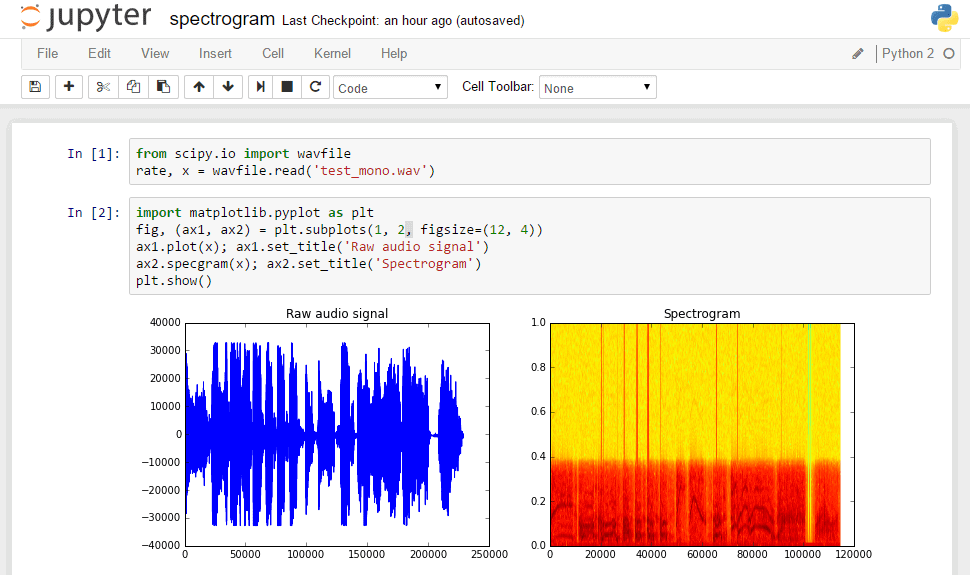
How does it look?
Here is the notebook window of Jupyter Notebook. As you can see, there is Python code interleaved with execution results and descriptions. Note that results can be strings, images or even videos! The smallest execution unit is a single segment, and we can “play” each of them, one after another.
Why should I use it?
Maybe you just want to play with python a bit? Maybe you’re doing data science, and changing context between results and script is too distracting? Or your script takes really long time to execute, and you want to save time? Jupyter allows you to achieve all these goals.
In my opinion one of the most useful features is the ability to replay only certain parts of the script. Imagine you just performed very time-consuming data preparation. Working with a standard script would require re-running the whole process from the beginning after each change. Jupyter automatically keeps all created variables in context, so we can save time and focus on fun things 🙂
Another nice thing is that you can write Markdown-flavoured descriptions inside the notebook. It’s much more readable than standard python comments, and keeps your code clean.
Getting started
Jupyter works as a server, so you just connect to it through your browser. If you’re familiar with Docker, you can just download my project repository and use docker-compose, like this:
git clone https://github.com/Valian/neural-image-upscaling
docker-compose up
After initialization, you can visit localhost:8888 in your browser and play with Jupyter. If you’re not a fan of Docker, check official installation guide.
We’re using Anaconda package, which contains most important data science packages, like matplotlib, pandas or scipy.
How it works
So, let’s create new notebook:
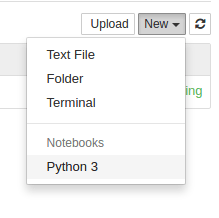
Now you can write code, and execute it using the toolbar Run button. Just write some python, select segment and press play button. Code should be executed, output printed and all created variables saved into context.
Here’s an example of a simple script:
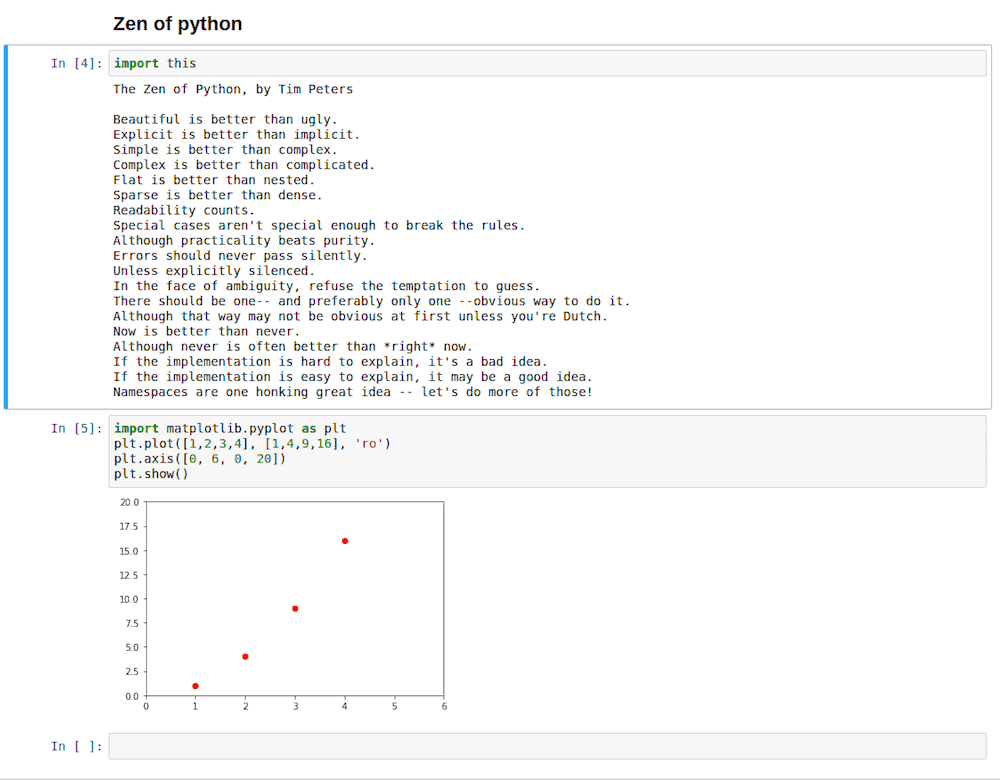
Also here you can find lots of great examples of Jupyter notebooks.
I think that’s all. Have fun with python and data science!